

Expired domain recovery guide
Rebuild the history. Replace the content. Give the domain a credible second chance.
This is the exact workflow I used to recover the useful structure of an old website, rebuild every page with new content using an AI coding agent, and get the finished site back into the index in less than four days.
An expired domain can retain useful backlinks, familiar URLs and years of topical history. But that does not mean the old site should simply be copied and republished. The approach in this guide uses the archived website as a structural blueprint, then creates a genuinely new site for today’s visitors.

THE METHOD
How the expired-domain rebuild works
The workflow is straightforward. The judgement calls—choosing the right domain, selecting a useful snapshot and reviewing the AI’s output—are what determine whether you end up with a coherent website or a pile of recovered files.TOOLKIT
What you need
Wayback Machine
Use the Internet Archive to inspect historical captures and choose the most complete-looking snapshot available.
Open the Wayback Machine →DomRecovery
Paste in a Wayback snapshot URL to recover the same-site pages and referenced assets available in that capture into an organised local folder.
Visit DomRecovery →VS Code and an AI coding agent
The video uses VS Code as the IDE. The important part is giving a configured AI agent access to both the recovered reference folder and the empty output folder.
Get Visual Studio Code →Optional metric checking
I used DomDetailer to compare Moz Domain Authority and Majestic Trust Flow before and after the site returned to the index.
Check DomDetailer →STEP 1
Find and properly vet an expired domain
You can start in Domain Hunter Gatherer Pro or Easy Expired Domains. Filters are useful for reducing the list, but they should never make the buying decision for you. Metrics are clues, not proof that a domain is clean, useful or capable of ranking. For every candidate, look at the whole story:- Historical topic: did the site cover one coherent subject for a meaningful period?
- Timeline: when did the original site change hands, redirect, disappear or become something else?
- Historic URLs: are there useful internal pages that can become relevant destinations again?
- Backlinks and anchors: do the surviving links make sense for the original topic, or do you see spam and manipulation?
- Brand and legal risk: avoid domains that would require impersonating a former business or infringing a trademark.
- Your ability to serve the topic: can you create something accurate and genuinely useful for the audience?
The domain used in the video
I found gordonwi.com after applying basic filters and manually reviewing the results. It showed 24 years of recorded history and 73 Wayback snapshots. For roughly 15 years, the original website consistently served Gordon and nearby communities in Northwest Wisconsin. The design and content changed over time, but the core topic remained stable. Around 2016 the history changed. The domain later redirected elsewhere, dropped and was subsequently used as a PBN site. By the time I found it, it had been deindexed and dropped again. That recent history made it a more difficult – but more interesting – test.
STEP 2
Find the most complete Wayback Machine snapshot
Open the domain in the Wayback Machine and inspect several years. Do not automatically choose the newest snapshot. A good capture is the one that gives you the clearest view of the legitimate site’s useful structure. Open the home page, use the archived navigation and check the important internal pages. Look for:- A working main navigation and recognisable content hierarchy.
- As many important internal pages as possible.
- Captured stylesheets, images and other assets that help reveal the intended layout.
- A date before an irrelevant redirect, spam takeover or PBN rebuild.
- A snapshot that still reflects the domain’s long-running legitimate topic.

STEP 3
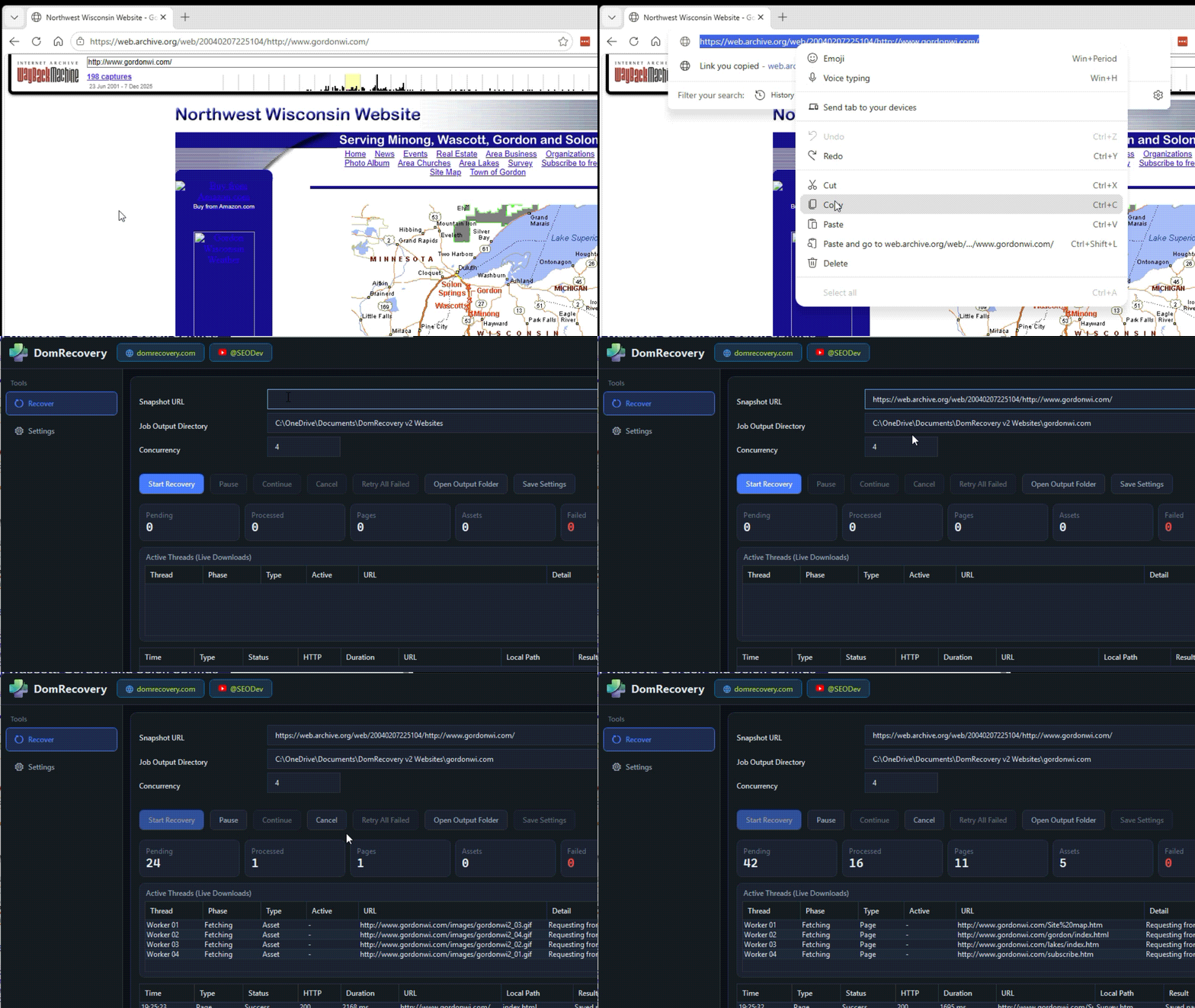
Recover the available website with DomRecovery
- Open the exact snapshot you want to use.
- Copy the complete Wayback snapshot URL from the browser.
- Open DomRecovery.
- Paste the snapshot URL into the recovery field.
- Choose your output location and start the recovery.
- Let the process finish, then browse the recovered files locally.
STEP 4
Create a clean work folder for the AI
Create one root folder named after the domain. Inside it, make two clearly labelled folders: one containing the recovered reference site and one completely empty folder for the new build.gordonwi.com/
├── Old Website/ ← recovered Wayback files
└── New Website/ ← AI writes the new site here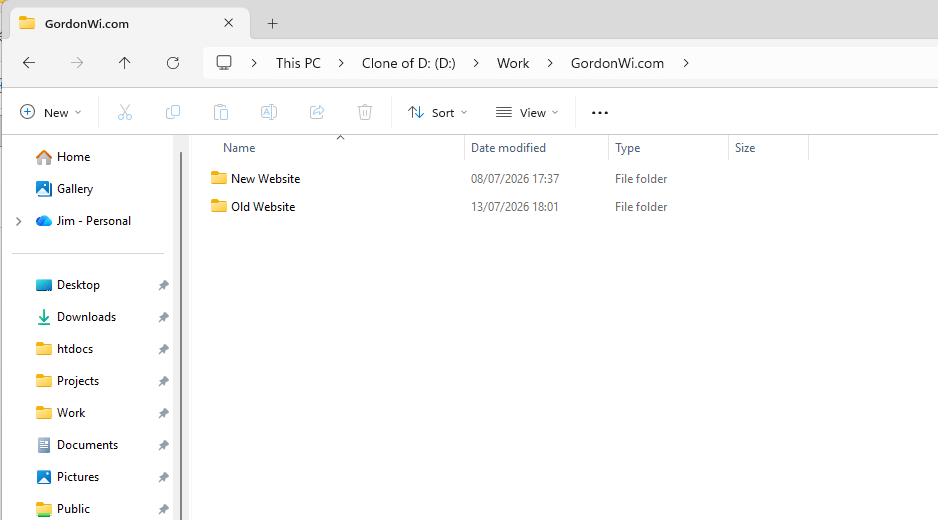
STEP 5
Open the workspace and give the AI its rebuilding prompt
Open the root folder—not just one of its subfolders—in VS Code. You can use an IDE-integrated agent such as Claude Code, Cursor, Codex or another capable coding assistant. The essential requirement is that the agent can inspect the recovered files and write a complete new site into the output folder. Paste in the rebuilding prompt. The prompt should make the boundaries explicit:- Treat Old Website as read-only structural reference.
- Write all finished files into New Website.
- Preserve useful historic paths and content relationships where they remain relevant.
- Do not copy archived text, images, logos or branding.
- Ask discovery questions before building anything.
- Create accurate, original and useful content based on the answers.
- Flag missing facts instead of inventing them.
Answer the AI’s questions with real detail
The questions are not friction; they are what stop the output becoming a generic reskin. Give the agent a clear purpose, a defined audience and reliable information.STEP 6
Review the new website before it goes online
When the agent finishes, open the new site locally. AI can produce a lot of work quickly, but the output still needs human judgement. Read the pages, click the links and ask for changes until the site feels intentional rather than generated.Pre-launch review
- Every important claim is accurate and supportable.
- The copy and visuals are original and properly licensed.
- Navigation works on desktop and mobile.
- No Wayback URLs, archive toolbars or old tracking code remain.
- Forms, buttons and contact details work.
- Page titles and meta descriptions are unique.
- Canonical URLs, robots.txt and the XML sitemap are correct.
- Historic URLs map to a relevant page or an intentional status.
- Broken links, missing images and accidental 404s are fixed.
- No placeholder text or invented business information remains.
Do not redirect every missing historic URL to the home page. Where a genuine equivalent exists, use that. Where it does not, create a useful replacement only if the topic belongs on the new site; otherwise, a clear 404 or 410 can be more honest than an irrelevant redirect.

STEP 7
Upload only the new website and verify the launch
Upload the contents of New Website to the domain’s hosting. Do not upload the recovered reference folder. Once deployment finishes, open the public site in a private browser window and repeat the important checks.- Confirm HTTPS and the preferred www or non-www hostname.
- Check the home page and several deep historic paths.
- Verify robots directives are not blocking the site.
- Open the XML sitemap and make sure it lists only canonical URLs.
- Check server logs or a crawler for broken paths and missing assets.
- For a normal project, connect Google Search Console and monitor coverage and impressions.
CASE-STUDY RESULT
The rebuilt domain returned to the index in under four days
Observed result
Indexed after 3 days and 21 hours
I was away before the final check, so the site may have entered the index earlier—possibly closer to three days.

The unexpected metric change
After indexation, I checked the domain again with DomDetailer. Moz Domain Authority remained at 31, while Majestic Trust Flow moved from 24 to 32.| Metric | Before | After |
|---|---|---|
| Moz Domain Authority | 31 | 31 |
| Majestic Trust Flow | 24 | 32 |
WHAT HAPPENS NEXT?
Reindexing is the starting line—not recovered rankings
A page being indexed means it is eligible to appear in search. It does not mean the page has regained its old positions, traffic or commercial value. The next phase is to watch what Google actually does with the rebuilt site. For a live project, I would monitor:- Which rebuilt URLs are indexed and which remain excluded.
- Search Console impressions and the queries that begin to appear.
- Crawl errors and backlinks still pointing to missing historic paths.
- Whether the new pages satisfy the same topic and intent as the links pointing to them.
- Content gaps that deserve genuine improvement rather than more automated filler.
- Rankings, traffic and conversions over weeks and months—not only the first index check.
AVOID THESE
Common expired-domain rebuilding mistakes
Final launch checklist
Before you put the rebuilt domain live
- Domain history reviewed across multiple years
- Mostly complete legitimate snapshot selected
- Recovery kept separate from the new output
- Original copy, visuals and branding created
- AI-generated facts manually verified
- Historic URL map reviewed
- Mobile navigation and links tested
- Canonicals, robots and sitemap checked
- Only New Website uploaded
- Indexing and search performance monitoring ready
FAQ
Expired domain recovery questions
Do I need a completely preserved Wayback snapshot?
No. Complete captures are uncommon. Choose the most useful legitimate snapshot available and treat missing pages or assets as gaps to redesign. The recovered material is a structural reference, not the finished site.
Should I keep every historical URL?
Keep or recreate paths that have a relevant purpose on the new site, especially when they still receive useful links. Do not revive irrelevant spam-era URLs merely because they exist in the archive.
Can I copy text and images from the archived website?
Only when you own the material or have permission to use it. This method uses the archive to understand structure and topical history, then replaces the public-facing content and design with original work.
Does an expired domain automatically retain its SEO value?
No. Backlinks may disappear, change value or point to irrelevant paths, and the domain may have acquired spam or other problems. History and third-party metrics should be investigated, not trusted blindly.
How long does it take to reindex an expired domain?
There is no fixed timetable. This case study was indexed when checked after 3 days and 21 hours, but another domain could be faster, slower or fail to index. A sub-four-day result should not be treated as a guarantee.
Is being indexed the same as regaining rankings?
No. Indexing only means a page is eligible to appear. Rankings depend on relevance, quality, competition, links, technical signals and many other factors. Measure impressions, positions, traffic and conversions over time.
Can an AI-built replacement website rank?
The useful question is whether the finished pages are accurate, original, helpful and technically sound. AI can accelerate production, but it does not remove the need for expertise, editing, fact-checking or a real reason for the site to exist.

